
Network Configuration
Network Configuration
Overview: The network configuration module manages device network connections, supporting WiFi AP/STA dual mode, mDNS domain access (
fastbee.local), static IP configuration. Full or custom builds can enable Ethernet (W5500), 4G cellular (EC801E) and other network modes. All network configurations are stored in/config/network.json, automatically entering AP mode on first boot for setup.
This document describes the FastBee-Arduino network configuration page, data/config/network.json configuration file, and the various supported network modes.
Current network management uses networkType to determine the physical network channel:
| networkType | Network Mode | Typical Hardware | Use Case | Description |
|---|---|---|---|---|
0 | WiFi | ESP32 built-in WiFi | Default recommended, regular LAN, first-time setup | Supports STA or AP mode |
1 | Ethernet | W5500 SPI to Ethernet module | Fixed installation, weak WiFi, low-latency LAN | Requires Ethernet compile switch |
2 | 4G Cellular | EC801E-CN module | Field deployment without wired/wireless LAN | Access carrier network via UART and APN |
Note: Lite builds usually only keep WiFi; W5500, 4G controlled by
FASTBEE_ENABLE_ETHERNET,FASTBEE_ENABLE_CELLULAR, only Full firmware with PSRAM should enable all network modes.
Interface Preview
Network configuration page is divided into basic, hotspot and advanced configuration. Before field modifications, confirm current IP and connection status; after modifying STA/AP, static IP or network mode, usually need to wait for network reconnection.
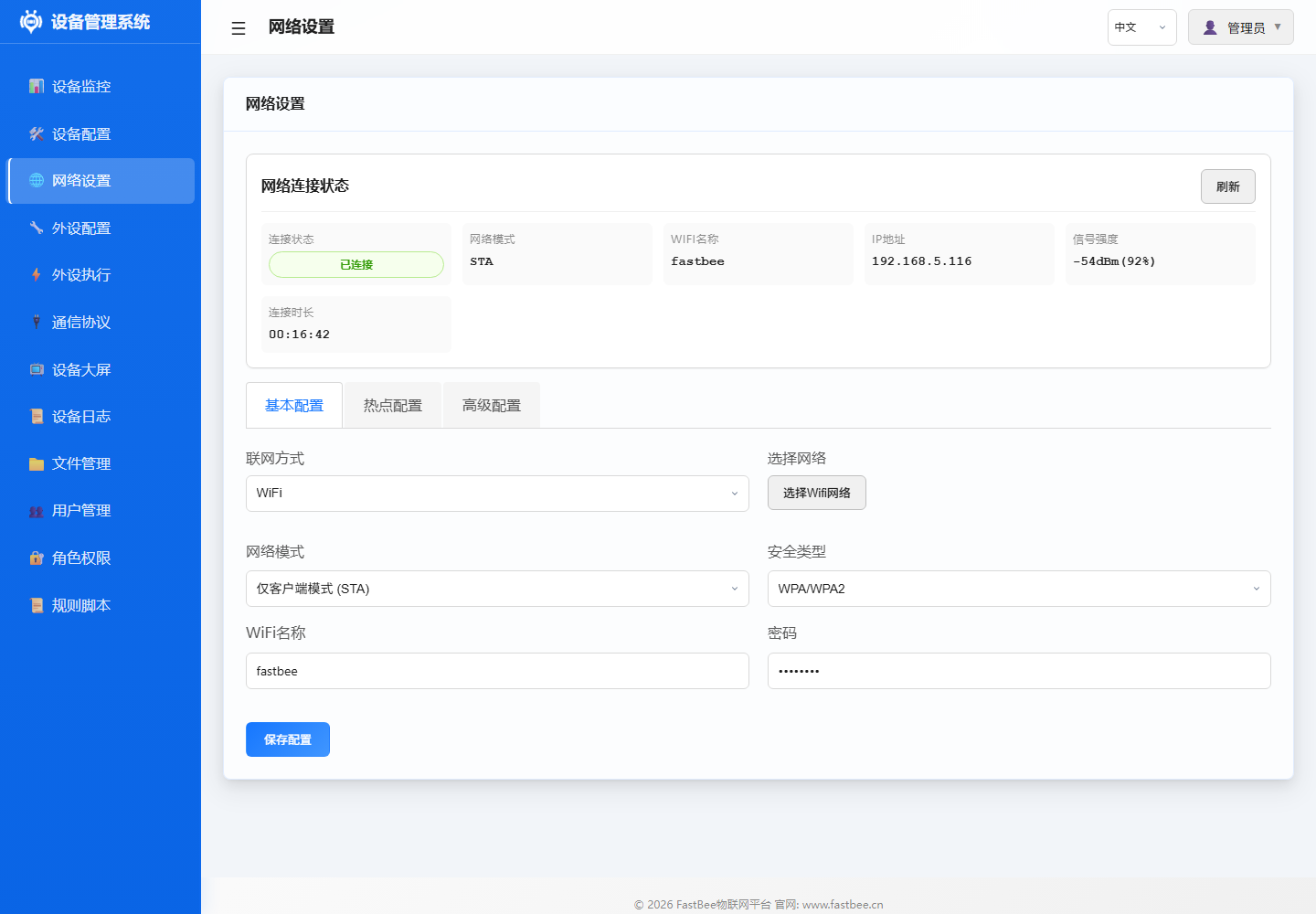
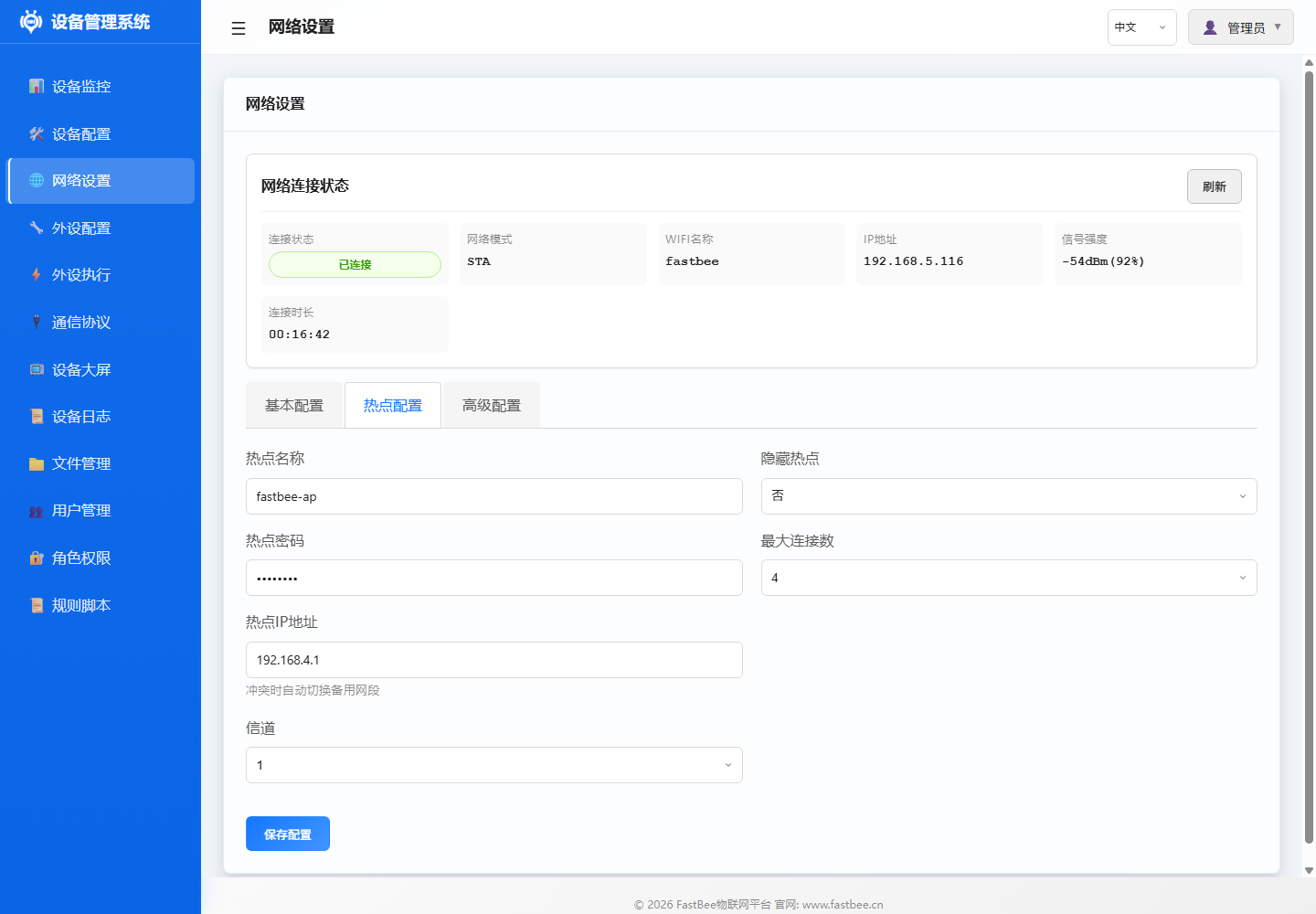
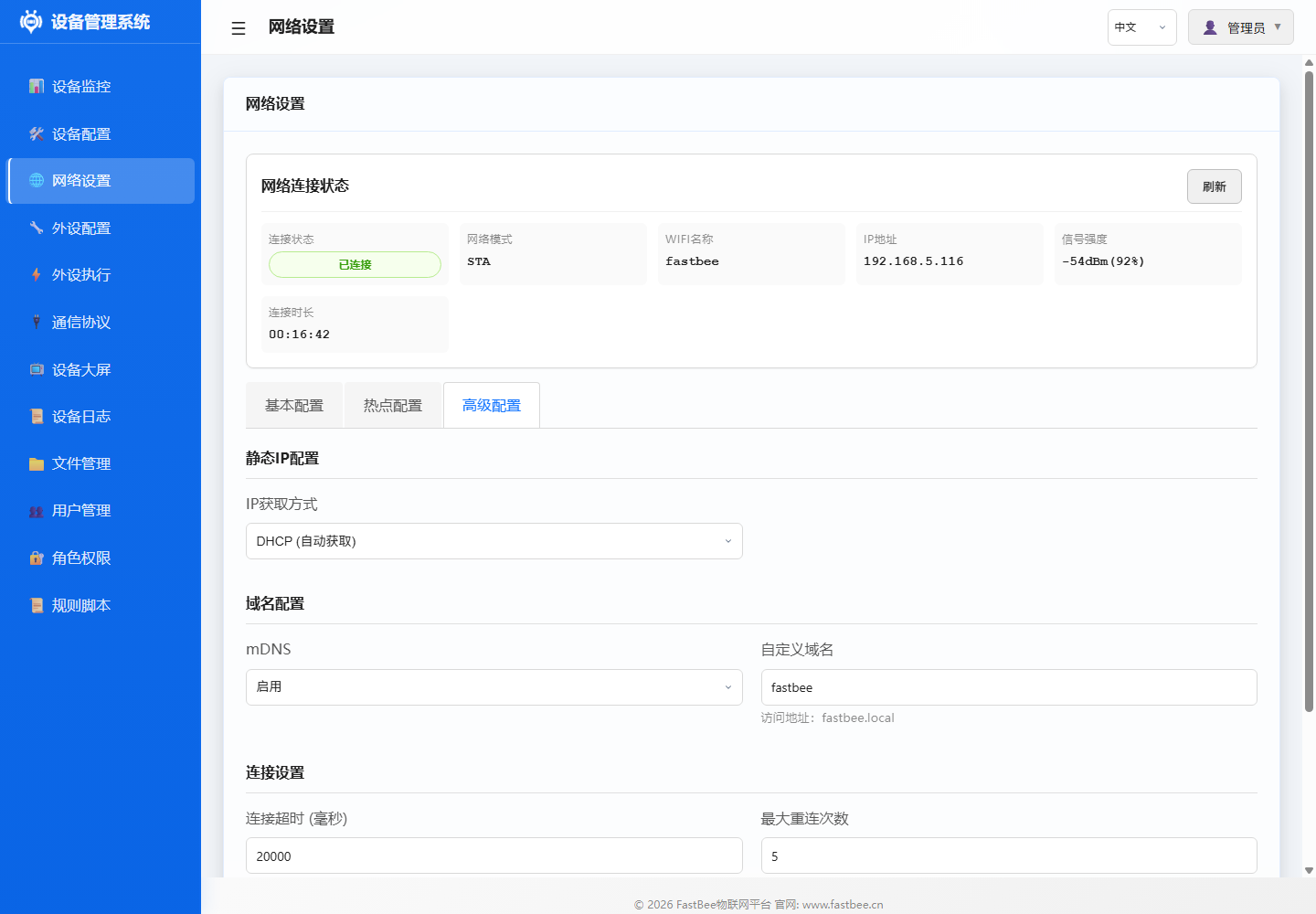
Network configuration is recommended to follow the diagram below: first confirm device boot and saved configuration, then observe STA networking, AP fallback, IP acquisition and protocol online status.
Configuration Entry
Web interface path: Network Settings
Main configuration saved to:
data/config/network.jsonCommon APIs:
| API | Purpose |
|---|---|
GET /api/network/config | Read network configuration |
PUT /api/network/config | Save network configuration |
GET /api/network/status | Read current network status |
GET /api/network/scan | Scan nearby WiFi |
After saving configuration, if network mode, WiFi mode, SSID or IP type was changed, the system marks restart needed. Frontend will prompt to wait for device reconnection.
Mobile AP Provisioning API
In AP mode the device exposes dedicated provisioning endpoints for mobile apps to complete WiFi setup and push device parameters. All provisioning endpoints are public (no login required) and can be called directly after joining the device hotspot.
Provisioning Endpoints
| Method | Path | Purpose |
|---|---|---|
GET | /api/wifi/scan | Scan nearby WiFi networks |
POST | /api/wifi/connect | Connect to WiFi and push device parameters |
GET | /api/wifi/status | Detect current device state (device info + network status) |
POST | /api/wifi/config | Provisioning endpoint: save WiFi and device parameters, switch to STA |
GET /api/wifi/scan
Scans nearby WiFi networks and returns the available list.
Request parameters: none
Response example:
{
  "success": true,
  "networks": [
    { "ssid": "OfficeWiFi", "rssi": -45, "channel": 6, "encrypted": true },
    { "ssid": "GuestOpen", "rssi": -80, "channel": 1, "encrypted": false }
  ],
  "count": 2
}
Response fields:
| Field | Type | Description |
|---|---|---|
success | bool | Whether the request succeeded |
networks | array | WiFi network list |
networks[].ssid | string | Network name |
networks[].rssi | int | Signal strength (dBm) |
networks[].channel | int | WiFi channel |
networks[].encrypted | bool | Whether encrypted |
count | int | Number of networks |
GET /api/wifi/status
Detects current device state, returning basic device info and network connection status. Suitable for the mobile side to probe device info and current network mode before provisioning.
Request parameters: none
Response example:
{
  "success": true,
  "data": {
    "deviceName": "fastbee",
    "deviceId": "",
    "userId": "1",
    "firmwareVersion": "1.0.0",
    "networkMode": "ap",
    "connected": false,
    "ipAddress": "192.168.4.1",
    "apSSID": "fastbee-ap",
    "apIP": "192.168.4.1",
    "macAddress": "AA:BB:CC:DD:EE:FF",
    "chipModel": "ESP32-S3",
    "chipRevision": 0,
    "freeHeap": 180000
  }
}
Response fields:
| Field | Type | Description |
|---|---|---|
deviceName | string | Device name (from device.json) |
deviceId | string | Device ID (from device.json) |
userId | string | User ID (from device.json) |
firmwareVersion | string | Firmware version |
networkMode | string | Current network mode: ap / sta / apsta |
connected | bool | Whether WiFi is connected (STA mode) |
ipAddress | string | Current IP (local IP when STA connected, hotspot IP in AP mode) |
ssid | string | Connected WiFi name (only when STA connected) |
rssi | int | WiFi signal strength (only when STA connected) |
apSSID | string | Device hotspot name |
apIP | string | Device hotspot IP |
macAddress | string | Device MAC address |
chipModel | string | Chip model (e.g. ESP32-S3) |
chipRevision | int | Chip revision |
freeHeap | int | Free heap memory (bytes) |
POST /api/wifi/config
Provisioning endpoint: saves WiFi configuration and device parameters. After successful provisioning the device automatically switches to STA mode to connect.
Difference from /api/wifi/connect: /api/wifi/config is a pure configuration push endpoint — WiFi info is written to network.json, device info to device.json, then the device restarts its network into STA mode; /api/wifi/connect is similar but with slightly different parameters.
Request parameters:
| Parameter | Required | Description |
|---|---|---|
SSID or ssid | Yes | WiFi name (case-insensitive alias) |
password or pwd | Yes | WiFi password (alias supported) |
userId | Yes | User ID, saved to device.json |
deviceNum | No | Device number, saved to the deviceId field of device.json |
extra | No | Product number, saved to the productNumber field of device.json |
Success response:
{
  "success": true,
  "message": "设备已更新WiFi配置,正在连接...",
  "data": {
    "ssid": "your-wifi",
    "mode": 0
  }
}
Missing parameters response (HTTP 400):
{
  "success": false,
  "message": "配网必须传递 SSID、WiFi密码和用户编号(userId)"
}
POST /api/wifi/connect
Connects to the given WiFi network and can push device parameters at the same time. After successful provisioning the device automatically switches to STA mode.
Request parameters:
| Parameter | Required | Description |
|---|---|---|
ssid | Yes | WiFi name |
password | Yes | WiFi password |
userId | No | User ID, saved to the userId field of device.json |
deviceNum | No | Device number, saved to the deviceId field of device.json |
extra | No | Product number, saved to the productNumber field of device.json only when it is a valid positive integer |
Response example:
{
  "success": true,
  "message": "WiFi configuration saved. Device will restart in STA mode."
}
Provisioning Flow
- Phone joins the device AP hotspot (default
fastbee-ap, passwordadmin123) - Call
GET http://192.168.4.1/api/wifi/statusto fetch device info and current network state - Call
GET http://192.168.4.1/api/wifi/scanto fetch the WiFi list - User picks the target WiFi on the phone and enters the password
- Call
POST http://192.168.4.1/api/wifi/configto submit the configuration (must include SSID, password, userId) - Device saves configuration (WiFi →
network.json, device parameters →device.json) and automatically switches to STA mode to join the target WiFi
First-Time Setup and AP Fallback
When device boots for the first time or STA cannot connect, it enters AP hotspot mode for continued Web management interface access.
Default AP parameters:
| Field | Description | Default |
|---|---|---|
apSSID | Hotspot name | fastbee-ap |
apPassword | Hotspot password | admin123 |
apChannel | WiFi channel | 1 |
apHidden | Hide SSID | false |
apMaxConnections | Max clients | 4 |
| AP IP | Management address | 192.168.4.1 |
If apSSID is empty, code uses deviceName + "_" + ChipID first 6 chars to generate hotspot name.
WiFi Networking
WiFi is the default network mode, networkType = 0.
WiFi Mode
| mode | Mode | Behavior |
|---|---|---|
0 | STA | Connect to external router or hotspot, normal LAN/internet access |
1 | AP | Device self-hotspot, only for local access and setup |
Current frontend configuration only provides STA and AP modes. When STA fails, network manager falls back to AP mode, ensuring Web management access remains available.
STA Configuration
| Field | Description | Example |
|---|---|---|
staSSID | Main WiFi name | office-wifi |
staPassword | Main WiFi password | password |
networks | Multi-SSID list | See example below |
connectTimeout | First connection timeout, ms | 10000 or 20000 |
reconnectInterval | Auto reconnect interval, ms | 5000 |
maxReconnectAttempts | Max reconnect attempts | 5 |
Multi-SSID configuration example:
{
  "networks": [
    { "ssid": "factory-main", "password": "pass1", "priority": 0 },
    { "ssid": "factory-backup", "password": "pass2", "priority": 1 }
  ]
}
At runtime, if networks is configured, the system scans nearby WiFi and selects the best network from configured SSIDs; if no configured items found, falls back to staSSID / staPassword.
AP Configuration
| Field | Description | Recommendation |
|---|---|---|
apSSID | Device hotspot name | Include device ID for field deployment |
apPassword | Hotspot password | WPA/WPA2 at least 8 chars; empty may form open hotspot |
apChannel | Hotspot channel | Common: 1, 6, 11 |
apHidden | Hide hotspot name | Generally not recommended, for easier maintenance |
apMaxConnections | Max connections | Field maintenance usually 1-4 |
AP mode has no internet connection, mainly used for configuration, maintenance, reading device local pages.
IP, DNS and mDNS
DHCP and Static IP
| ipConfigType | Mode | Description |
|---|---|---|
0 | DHCP | Router auto-assigns IP, default recommended |
1 | Static IP | Manually specify IP, gateway, subnet and DNS |
Static IP fields:
| Field | Description | Example |
|---|---|---|
staticIP | Device fixed IP | 192.168.1.50 |
gateway | Default gateway | 192.168.1.1 |
subnet | Subnet mask | 255.255.255.0 |
dns1 | Primary DNS | 8.8.8.8 |
dns2 | Backup DNS | 8.8.4.4 |
DNS can also be explicitly set in DHCP mode. Code uses WiFi.config(0,0,0,0,dns1,dns2) to enable DHCP and set DNS.
mDNS
| Field | Description | Default |
|---|---|---|
enableMDNS | Enable mDNS | true |
customDomain | Local domain prefix | fastbee |
After enabling, try accessing via:
http://fastbee.localNotes:
- mDNS only works on the same LAN.
- Windows may need Bonjour/mDNS support.
- If router isolates wireless clients,
.localaccess may fail, use device IP instead.
IP Conflict and Failover
Configuration structure includes IP conflict detection and failover fields:
| Field | Description |
|---|---|
conflictDetection | Conflict detection method, enum defined by IPConflictMode |
failoverStrategy | Backup IP selection strategy |
autoFailover | Auto switch after conflict detected |
conflictCheckInterval | Conflict detection interval, ms |
maxFailoverAttempts | Max failover attempts |
conflictThreshold | Conflict threshold |
fallbackToDHCP | Fallback to DHCP if backup IP fails |
backupIPs | Backup static IP list |
For field fixed IP deployment, recommended to first do DHCP reservation on router, then use device static IP to reduce conflict probability.
Ethernet W5500
Ethernet uses W5500 SPI to Ethernet module, networkType = 1.
Suitable for:
- Sites with poor WiFi signal or strong electromagnetic interference.
- Gateways, control cabinets, fixed installation devices.
- MQTT/Modbus gateways requiring stable LAN connection.
Default pins:
| Field | Description | Default |
|---|---|---|
ethernet.spiMosi | SPI MOSI | 11 |
ethernet.spiMiso | SPI MISO | 13 |
ethernet.spiSck | SPI SCK | 12 |
ethernet.csPin | W5500 CS | 47 |
ethernet.rstPin | W5500 RST | 48 |
ethernet.intPin | W5500 INT | 14 |
Configuration steps:
- Connect W5500 module to ESP32 SPI pins.
- Connect RJ45 cable to router or switch.
- Select
Ethernet (W5500)in Web interface. - Modify SPI and control pins according to actual hardware.
- Save configuration, wait for network restart.
Notes:
- W5500 needs stable 3.3V power, some modules have high peak current.
CS,RST,INTshould not conflict with enabled peripherals.- Static IP configuration still uses common IP fields.
- If current build doesn't enable
FASTBEE_ENABLE_ETHERNET, selecting this mode won't actually initialize adapter.
4G Cellular EC801E-CN
4G cellular uses EC801E-CN module, networkType = 2.
Suitable for:
- Sites without wired network or WiFi.
- Outdoor, mobile, temporary deployment.
- Reporting to cloud platform via MQTT.
Hybrid Mode Architecture
4G mode uses hybrid architecture: 4G module handles internet access, while ESP32 built-in WiFi works in pure AP mode for local Web management access.
| Function | Channel | Description |
|---|---|---|
| Internet access | 4G Cellular | Device accesses MQTT/HTTP cloud services via carrier network |
| Local Web management | WiFi AP | Device as hotspot, user connects to access management interface |
| mDNS domain | AP interface | If client supports mDNS/Bonjour, can additionally access via fastbee.local (optional) |
Access method: In 4G mode, first connect phone/computer to device hotspot (default
fastbee-ap), then access Web management interface viahttp://192.168.4.1.Device simultaneously provides MQTT reporting and other cloud functions via 4G network, both are independent.
Default pins and parameters:
| Field | Description | Default |
|---|---|---|
cellular.txPin | ESP32 TX, to module RX | 39 |
cellular.rxPin | ESP32 RX, to module TX | 40 |
cellular.pwrPin | Module power/enable control | 38 |
cellular.baudRate | UART baud rate | 115200 |
cellular.apn | Carrier APN | CMNET |
Common APNs:
| Carrier | Common APN |
|---|---|
| China Mobile | CMNET, CMIOT |
| China Unicom | 3GNET, WONET |
| China Telecom | CTNET |
Configuration steps:
- Insert SIM card with activated data service.
- Confirm 4G antenna connection is reliable.
- Cross-connect UART: ESP32 TX to module RX, ESP32 RX to module TX.
- Connect or configure
pwrPin, ensure module can power on. - Select
4G Cellular (EC801E)in Web interface. - Enter APN, save configuration, wait for network initialization.
Notes:
- 4G module has high instantaneous current on power-on, insufficient power causes repeated restarts, no AT response or registration failure.
- APN error causes module to recognize SIM but unable to establish data connection.
- External high-gain antenna recommended for weak signal environments.
- Public network inbound access usually unavailable in 4G mode, recommend device actively connects to MQTT/HTTP service.
- In 4G mode WiFi only works in AP mode (no STA connection), so local management must connect to device hotspot.
- Device attempts to start mDNS service (
fastbee.local) on AP interface, but mDNS resolution depends on client support (Windows/macOS/Linux usually support, some mobile devices need Bonjour app); AP IP192.168.4.1is the only reliable access address.
Network Mode Selection Recommendations
| Scenario | Recommended Mode | Reason |
|---|---|---|
| Regular home/office testing | WiFi STA | Simple configuration, easy debugging |
| First-time setup or forgot network params | WiFi AP | Doesn't depend on external network |
| Industrial control cabinet, fixed gateway | W5500 Ethernet | Stable, low latency, interference resistant |
| Outdoor or no LAN sites | 4G Cellular | Doesn't depend on site network |
Configuration File Example
{
  "mode": 0,
  "networkType": 0,
  "deviceName": "FastBee-Device",
  "apSSID": "fastbee-ap",
  "apPassword": "admin123",
  "apChannel": 1,
  "apHidden": false,
  "apMaxConnections": 4,
  "staSSID": "factory-main",
  "staPassword": "wifi-password",
  "networks": [
    { "ssid": "factory-main", "password": "wifi-password", "priority": 0 },
    { "ssid": "factory-backup", "password": "backup-password", "priority": 1 }
  ],
  "ipConfigType": 0,
  "staticIP": "",
  "gateway": "",
  "subnet": "",
  "dns1": "8.8.8.8",
  "dns2": "8.8.4.4",
  "connectTimeout": 20000,
  "reconnectInterval": 5000,
  "maxReconnectAttempts": 5,
  "customDomain": "fastbee",
  "enableMDNS": true,
  "conflictDetection": 2,
  "failoverStrategy": 2,
  "autoFailover": true,
  "conflictCheckInterval": 30000,
  "maxFailoverAttempts": 3,
  "conflictThreshold": 2,
  "fallbackToDHCP": true,
  "ethernet": {
    "spiMosi": 11,
    "spiMiso": 13,
    "spiSck": 12,
    "csPin": 47,
    "rstPin": 48,
    "intPin": 14
  },
  "cellular": {
    "txPin": 39,
    "rxPin": 40,
    "pwrPin": 38,
    "baudRate": 115200,
    "apn": "CMNET"
  }
}
Build Switches
Multiple network modes controlled by feature switches:
| Macro | Purpose |
|---|---|
FASTBEE_ENABLE_ETHERNET | Compile W5500 Ethernet adapter |
FASTBEE_ENABLE_CELLULAR | Compile 4G cellular adapter |
If a macro is 0, corresponding adapter code won't be compiled into firmware. Fields preserved in Web configuration file don't mean current firmware supports that network mode.
Troubleshooting Quick Reference
| Issue | Common Causes | Recommendations |
|---|---|---|
| WiFi connection failed | SSID/password error, weak signal, router rejection | Rescan and select network, move closer to router, check 2.4GHz support |
| Cannot access device after STA save | IP changed or network switching | Wait 10-20s then access mDNS or router-assigned IP |
| AP hotspot not found | apHidden=true, incompatible channel, AP start failed | Disable hidden SSID, use channel 1/6/11, restart device |
| Static IP inaccessible | IP/gateway/subnet mismatch or conflict | Revert to DHCP, or verify network segment and occupancy on router |
| mDNS unavailable | Client unsupported, cross-segment, router isolation | Use device IP, or install/enable mDNS service |
| W5500 no connection | SPI pin error, cable/switch issue, insufficient power | Check MOSI/MISO/SCK/CS/RST/INT, confirm link light and 3.3V |
| W5500 has link but no IP | DHCP unavailable or static IP misconfigured | Check router DHCP, or enter correct static IP |
| 4G module no response | TX/RX reversed, insufficient power, PWR control issue | Cross-check serial, use independent regulated power, confirm module power-on sequence |
| 4G registration failed | SIM not activated, APN error, weak signal | Test SIM data service, confirm APN, check antenna and signal |
Maintenance Recommendations
- During debugging phase, prioritize WiFi STA or AP, confirm protocol and peripheral logic before switching to 4G.
- For field fixed deployment, prioritize DHCP reserved address, then consider device static IP.
- After switching
networkType, recommend restarting device and observing serial log, confirm actual adapter initialized. - In production environment, change default AP password to avoid open maintenance entry.